The controller has a GPU that supports real-time G-code tool path simulation.
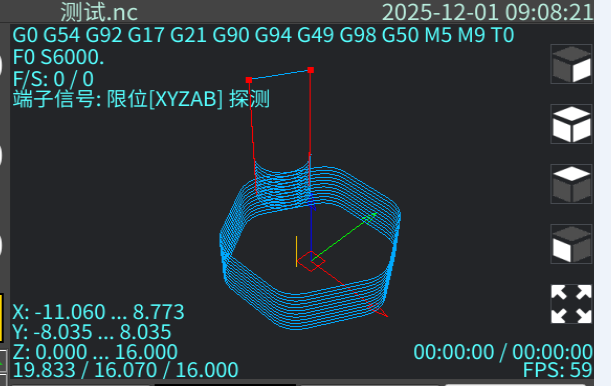
You can adjust the viewing angle using the buttons on the right side:

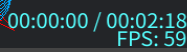
The bottom right corner shows the real-time elapsed time and estimated run time:
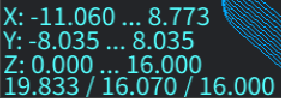
The bottom left corner displays the G-code machining range information:
| X: min … max | X-axis range | Minimum to maximum coordinates in X direction |
| Y: min … max | Y-axis range | Minimum to maximum coordinates in Y direction |
| Z: min … max | Z-axis range | Minimum to maximum coordinates in Z direction |
| x / y / z | Workpiece dimensions | X size / Y size / Z size |
You can zoom in and out by pinching with two fingers or using the mouse scroll wheel.
You can drag the tool path display by touching with three fingers (3 touch points) or using the left mouse button.
Due to GPU performance and memory limitations, you cannot load infinitely large G-code files for simulation. Files smaller than 4MB are automatically simulated by default.
You can disable the simulation through settings.
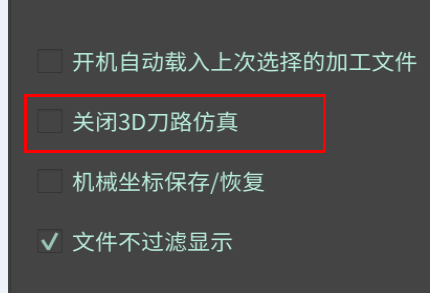
For machining files with more than 3 axes, it is recommended to disable 3D tool path simulation, as it may cause the program to crash when loading (not yet fixed).
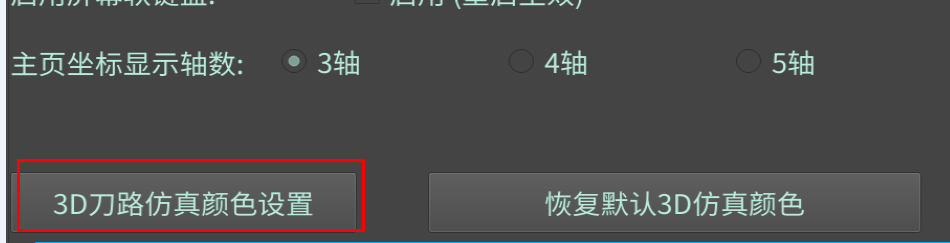
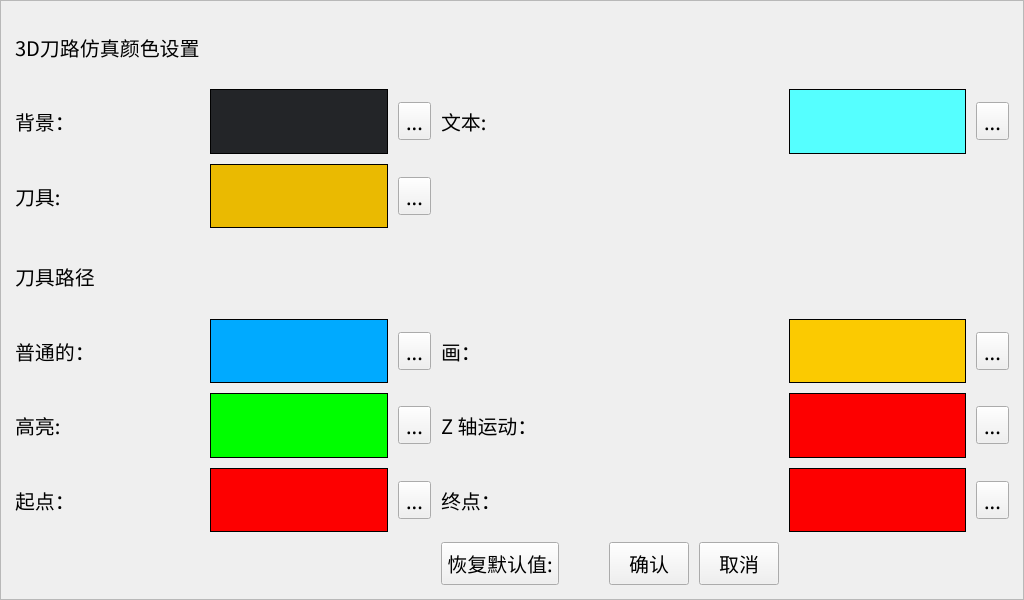
Finally, you can also customize the colors of the tool path simulation.