This controller has a built-in 2.4GHz Wi-Fi module,
which can be used for system updates or for transferring files to and from your computer.
After connecting to Wi-Fi,
download the E-Link file transfer software for your computer,
extract it and click <E-Link.exe> to run it. Only Windows 10 and 11 are supported.
Enter the IP address obtained by the controller.
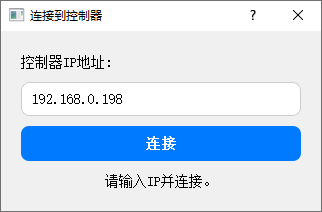
If you don’t know it, you can check it under <File> 👉 <Network>.
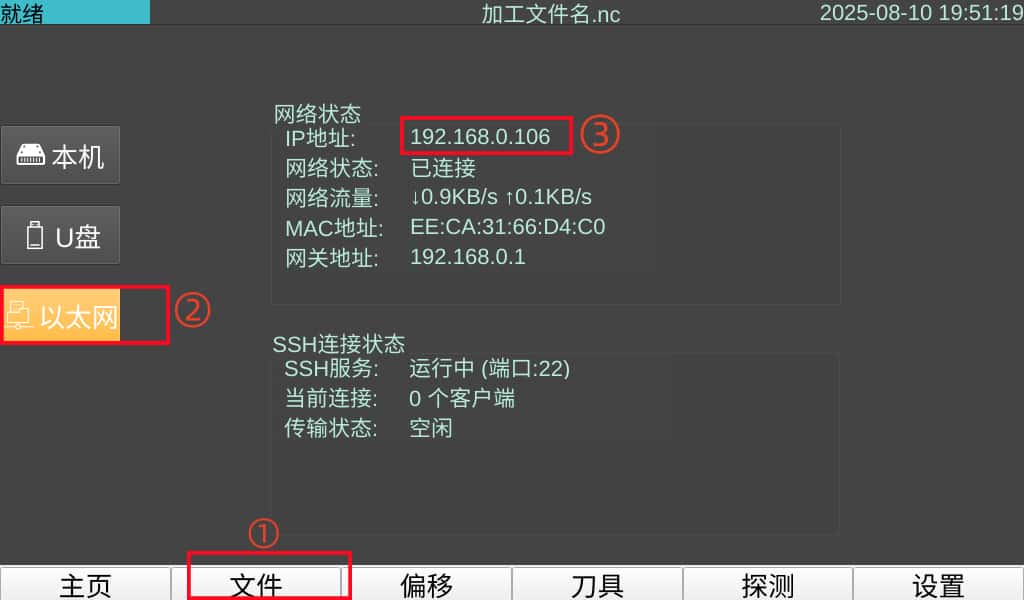
🖐Note: File transfer works over the local network. Please make sure your computer and the controller are connected to the same router.
Once connected, you can click Upload File to select a file and transfer it to the controller,
or drag a file into the software window to upload it.
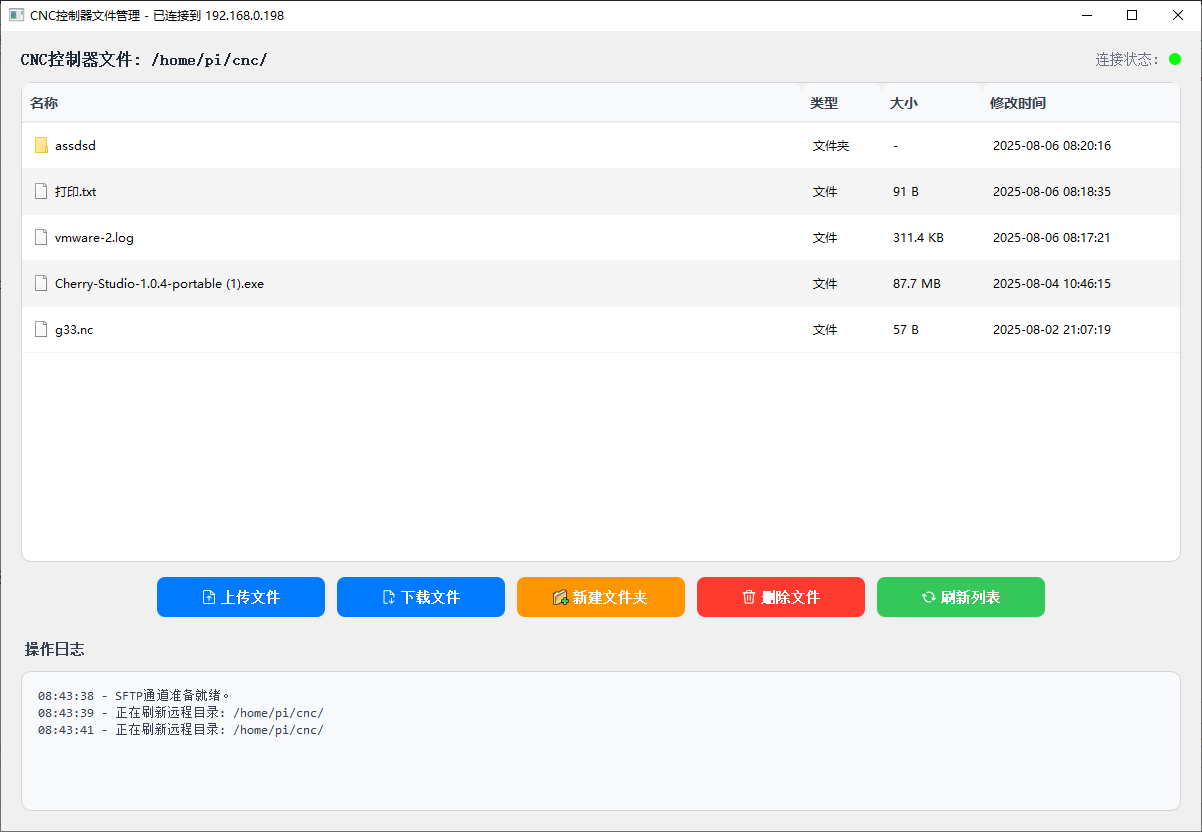
🖐Note: If the list is empty the first time you connect, just click <Refresh List> manually.
🖐Note: Uploaded files are saved to whichever directory you are currently in.
🖐Note: The computer client does not filter files, i.e. all files are shown,
while the controller filters files by extension, showing only the extensions commonly used for machining files.
You can hold Ctrl to select multiple files in the list and delete or download them in batch.
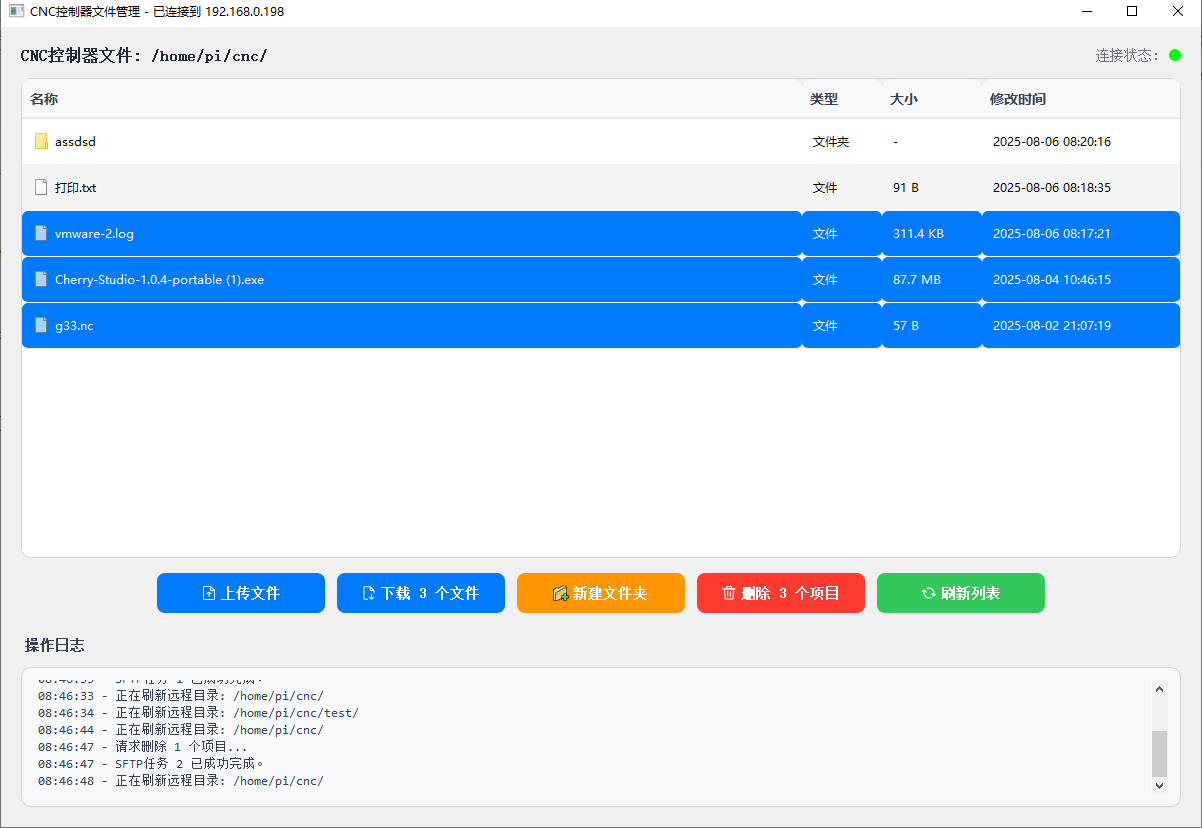
New in V5:
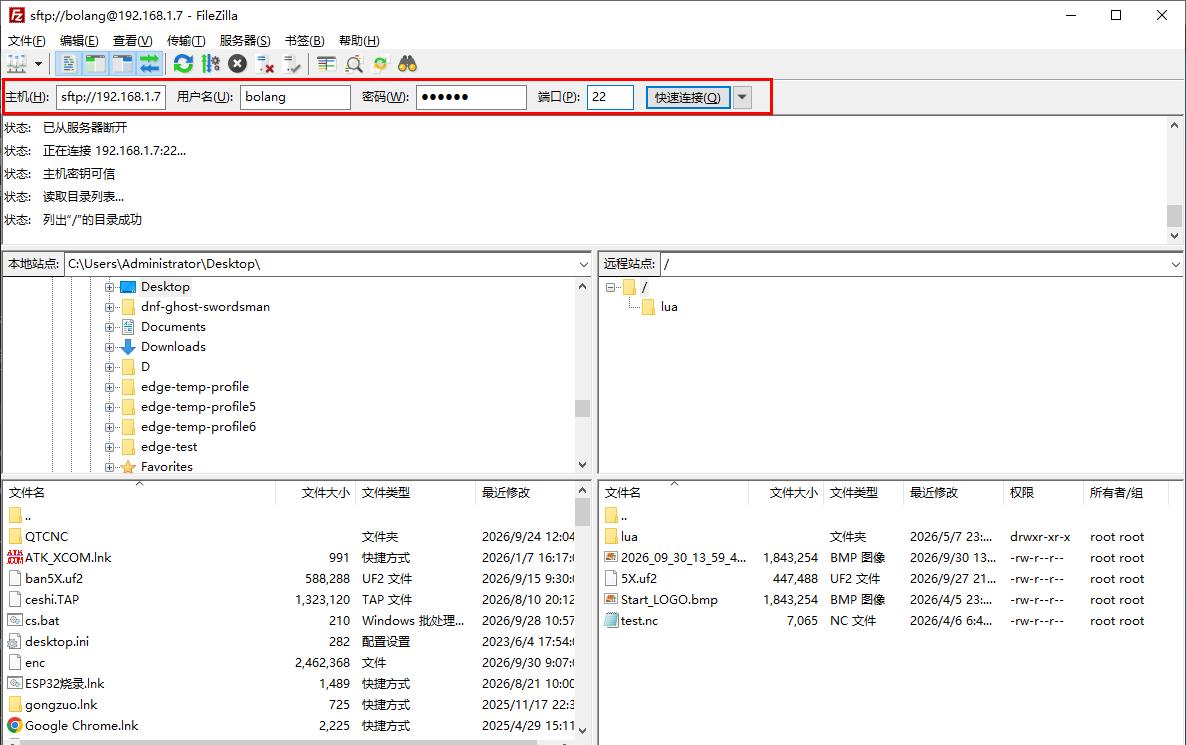
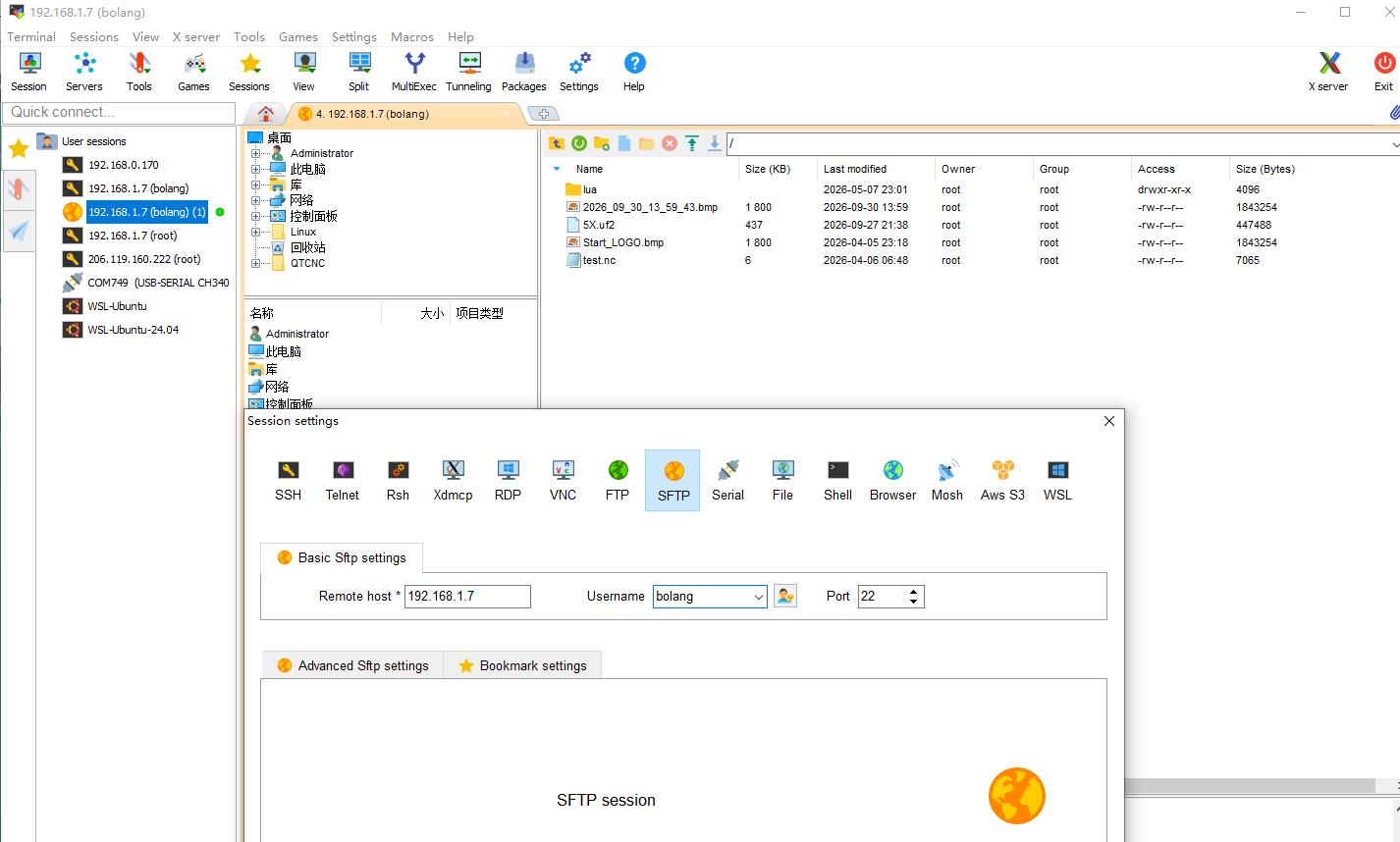
In addition to our client, you can also use any software that supports the SFTP protocol to manage and transfer files,
such as FileZilla or MobaXterm.
Make sure to select SFTP as the protocol and enter the controller’s IP. The username is fixed as bolang (all lowercase letters), and the default password is bolang.
If you need to change the password, you can do so in Settings.