The control board comes from the factory with the universal 4-axis firmware already flashed.
If you need to flash a different firmware,
connect the control board to your computer, then hold down the BOOT button and press the RESET button once. The board is now in firmware download mode.
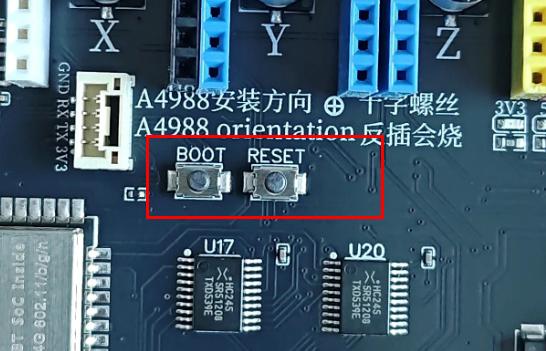
Firmware download mode does not require an external 12-24V power supply.
Next, download the flash download tool from Espressif:
https://dl.espressif.com/public/flash_download_tool.zip
Default firmware: https://www.bolangsk.cn/wp-content/uploads/asgarosforum/77/firmware.bin
For further details about this software, please refer to the official documentation:
Select ESP32 as the chip type, then click OK.

In the software, select the COM port of the control board and set the baud rate to 115200.
Please check this carefully — do not select 1152000. A baud rate that is too high will cause the flashing communication to fail.
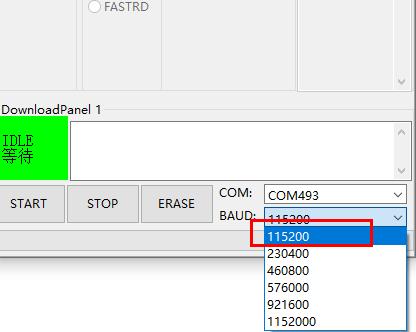
Then choose the firmware you want to flash: click “…” to select the firmware file, tick the checkbox on the left, and enter the flash address 0x10000 in the edit box to the right of the @ sign.
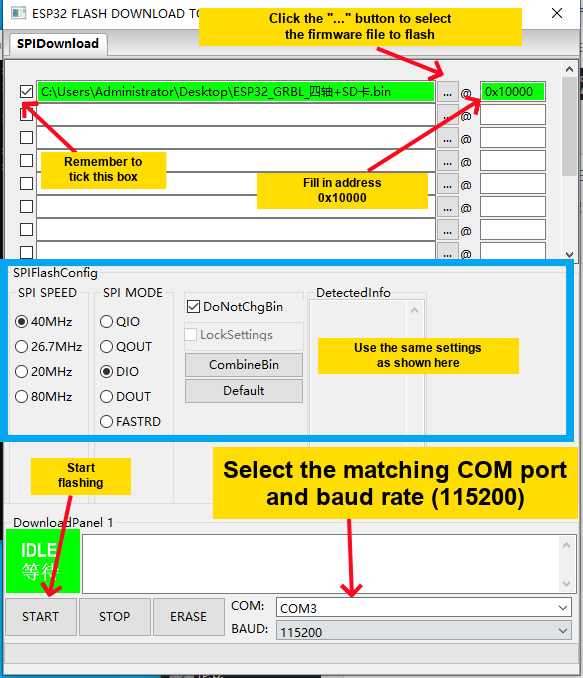
Click START to begin flashing.
The most common flashing errors are a baud rate set too high and the control board not being in download mode. Hold down BOOT and then press RESET to enter download mode.
Flashing All Four Firmware Files #
If your control board is damaged for some reason and you replace the ESP32 module yourself, or if you entered the wrong flash address, or if for any other reason flashing a single firmware file does not work,
then follow this section to flash all 4 firmware files.
For a board that already has the firmware programs flashed, you only need to flash the single main program .bin file when switching to another firmware, because the other 3 files have already been flashed.
bootloader.bin flash address 0X1000
boot_app0.bin 0xe000
partitions.bin 0x8000
firmware.bin (that is, the main program .bin) 0x10000
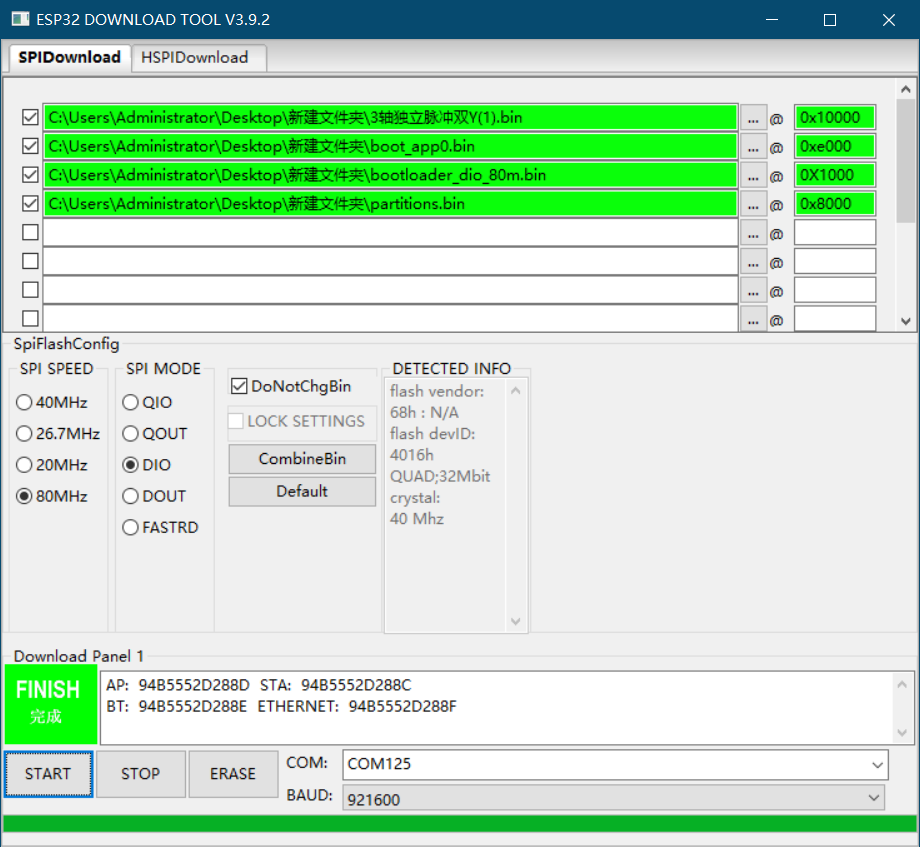
Remaining 3 Firmware Files.rar


