FluidNC is a project redeveloped by the author of ESP32-GRBL, and it is also based on the GRBL core.
It can be thought of as an upgraded version of ESP32-GRBL.
We only provide a basic getting-started tutorial for FluidNC.
We recommend getting familiar with ESP32-GRBL before trying it.
The GitHub source code repository is: https://github.com/bdring/FluidNC
The FluidNC user guide is at: http://wiki.fluidnc.com/en/home
Installing FluidNC #
This tutorial is based on the official FluidNC installation guide, which is more detailed.
If anything is unclear, you can refer to it directly: http://wiki.fluidnc.com/en/installation
To use FluidNC, you first need to install its firmware,
and then upload the “config.yaml” machine configuration file.
Download the latest firmware release from this page: https://github.com/bdring/FluidNC/releases
Download fluidnc-vXXX-win64.zip.
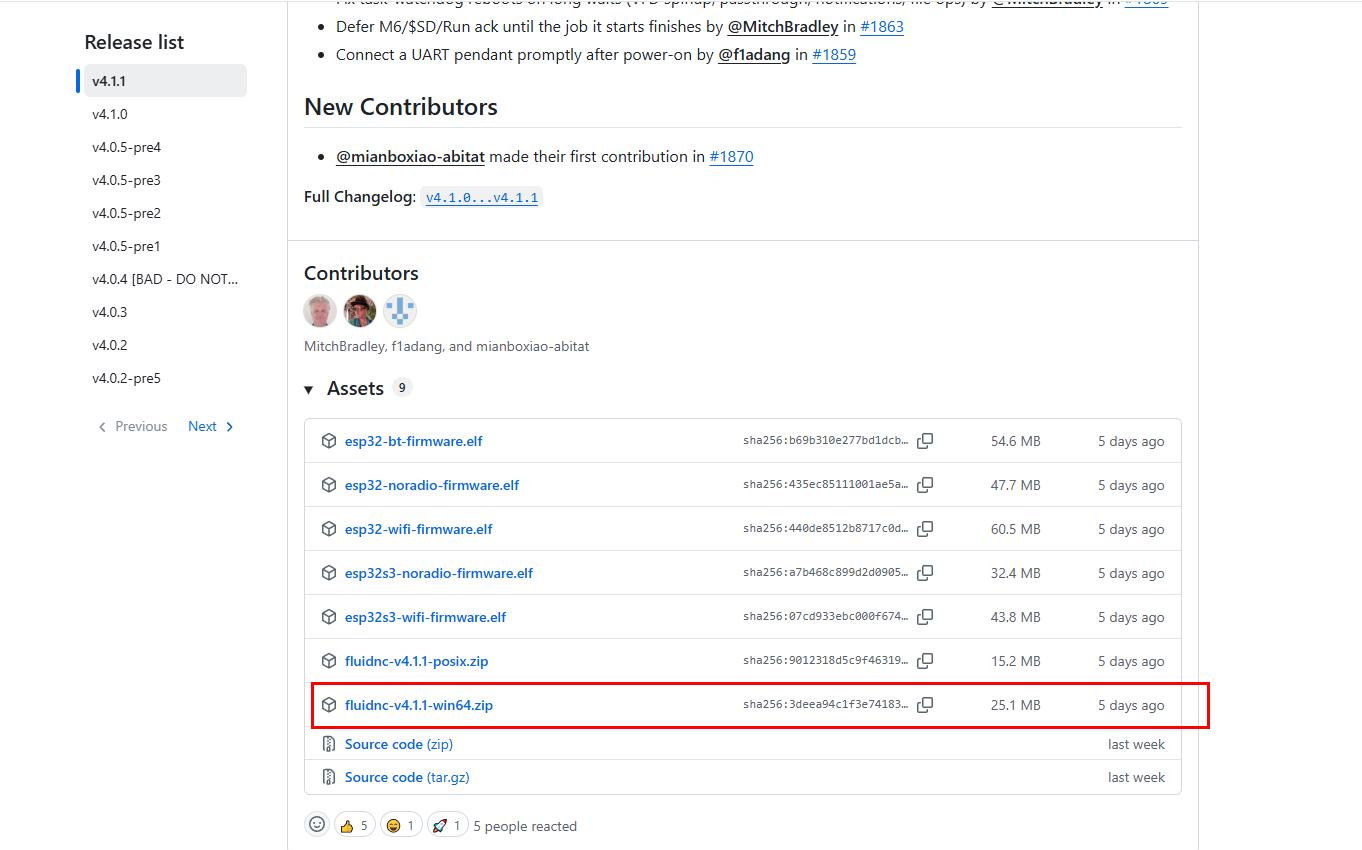
After extracting it, run install-wifi.bat to install the firmware. If it reports that the port is in use, unplug the controller board and plug it back in.
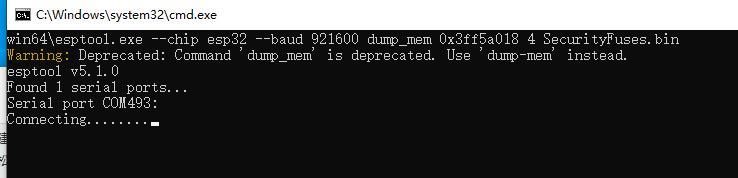
Since this controller board has no auto-download circuit, when the script shows Connecting……….,
quickly hold down the BOOT button on the board and press RESET once to enter download mode.
The firmware download script requires you to do this twice: the first time is a security check, and the second time is the actual flashing.
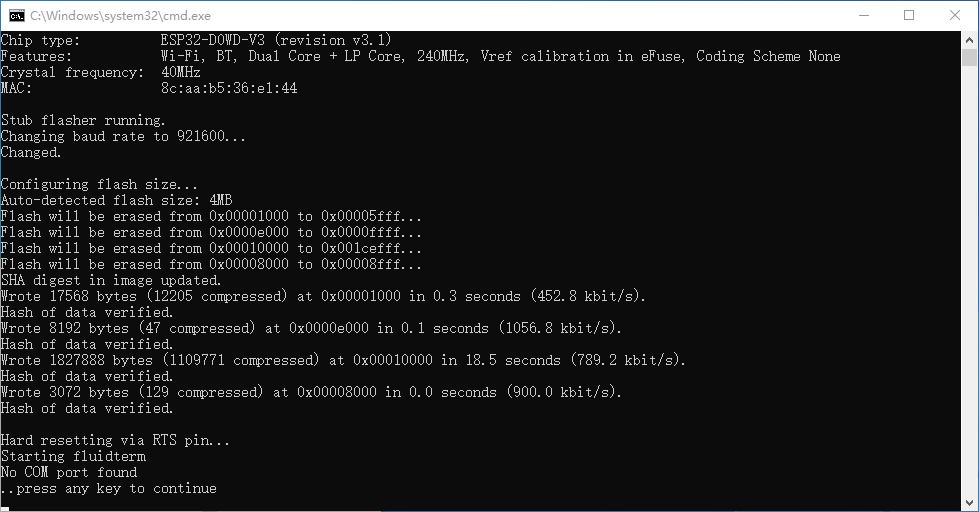
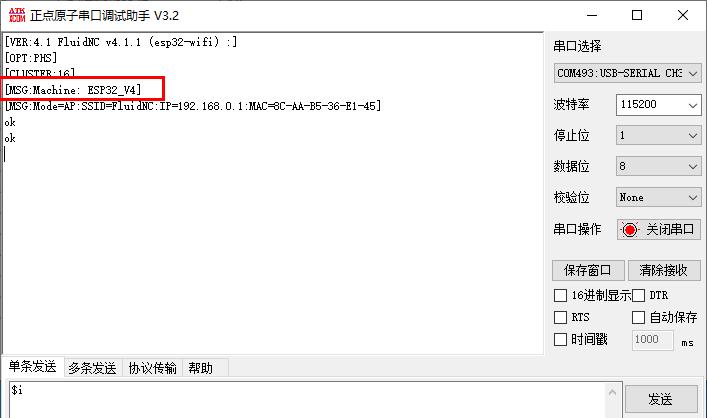
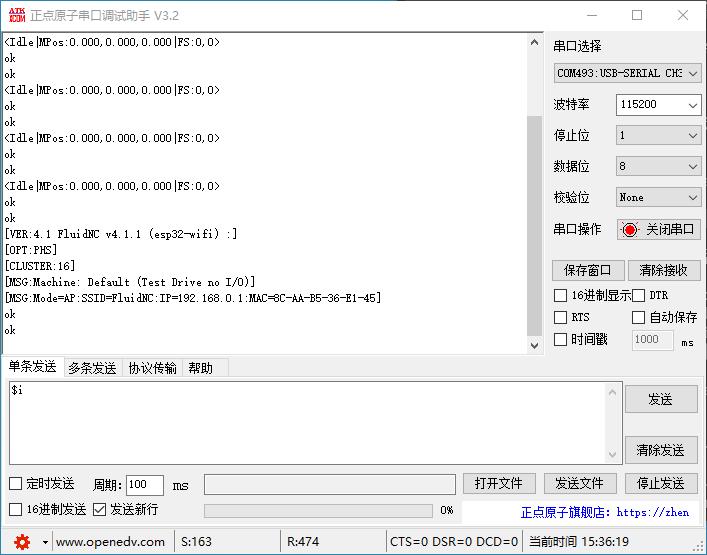
After flashing succeeds, you can connect with a serial terminal and send the $i command.
It will show FluidNC and its version number.
Uploading the config.yaml Configuration File #
Download https://www.bolangsk.cn/wp-content/uploads/asgarosforum/81/config.yaml
Then run fluidterm.bat.
Uploading the configuration file requires grbl to be running, not in firmware download mode.
In addition, if your controller board’s serial port number is greater than 255,
fluidterm.bat will report that no serial port can be found, because its source code only searches for serial ports up to 255.
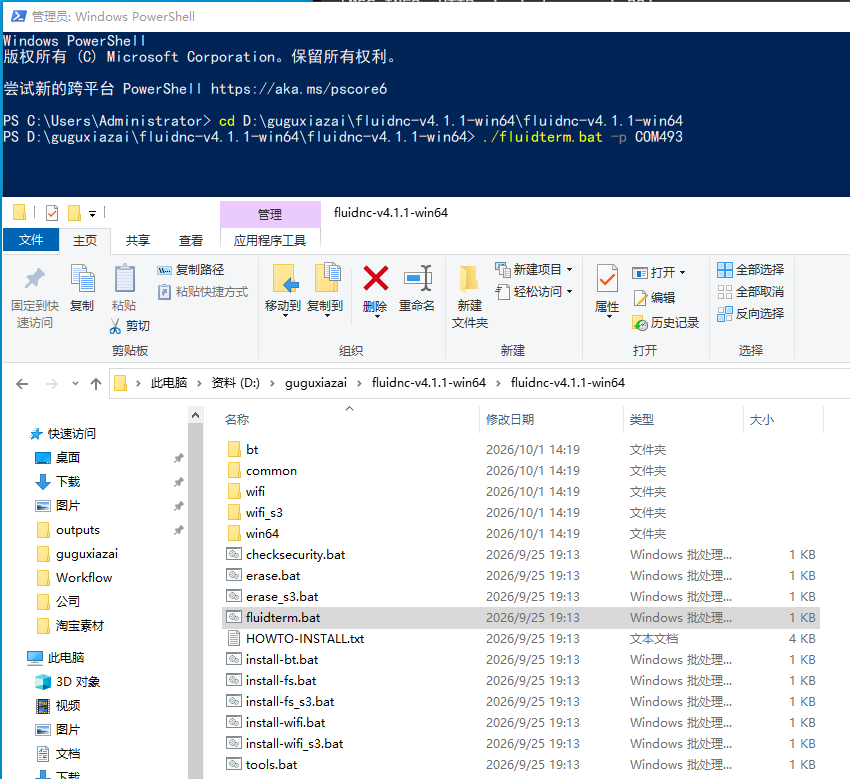
In that case, you need to use Windows PowerShell to run fluidterm.bat with the serial port number specified.
First, in the CMD window, type the directory of the fluidterm.bat script you downloaded: cd D:\guguxiazai\fluidnc-v4.1.1-win64\fluidnc-v4.1.1-win64 and press Enter to confirm.
Then type the command with your controller board’s serial port number: ./fluidterm.bat -p COM493
If your controller board’s serial port number is less than or equal to 255, you can simply double-click fluidterm.bat to run it.
When it opens, it will show the following information:
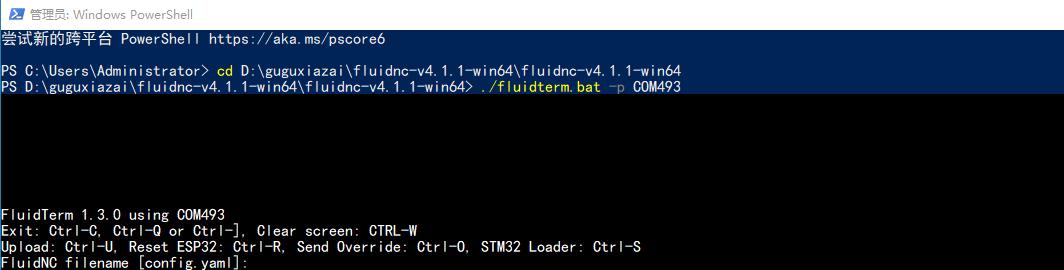
Press Ctrl+U and select the configuration file in the pop-up window.
When it prompts FluidNC filename [config.yaml]:, just press Enter to upload. Do not type anything.
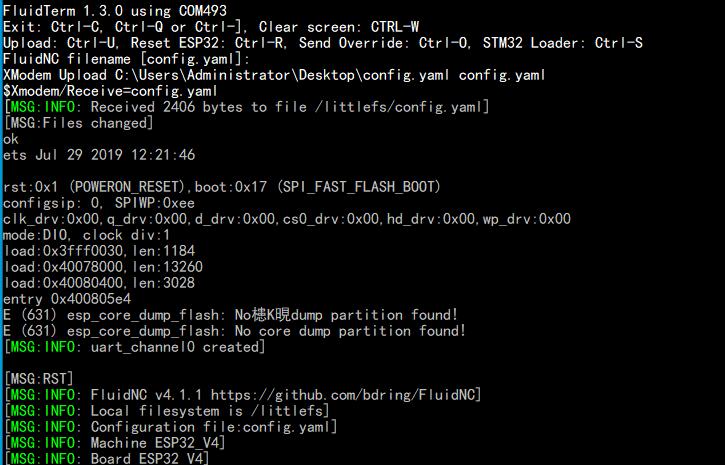
Likewise, after restarting, type $i and you will see [MSG:Machine: ESP32_V4], which means the configuration file was uploaded successfully.